Intro
A human walk cycle animation is one of the most useful exercises for learning character animation. It teaches timing, spacing, weight, balance, body mechanics, and rhythm in a short loop that can be reused in games, films, motion graphics, and 3D character projects.
This guide explains how to build a human walk cycle at 30 fps using clear walk cycle frames, readable key poses, and simple frame-by-frame timing. You can use it as a walking animation reference for 2D animation, 3D animation, or game animation.
In this article, we will use a 60-frame walk cycle played at 30 fps. That means the full loop lasts 2 seconds and includes two steps: one step with the left foot and one step with the right foot.
What Is a Walk Cycle Animation?
A walk cycle animation is a looping sequence of frames where a character takes a step with one foot, then a step with the other foot, and returns to the starting pose. When the first and last poses match correctly, the animation can repeat continuously without a visible break.
A walk cycle is usually built from several important poses:
- Contact pose — the foot reaches the ground.
- Down pose — the body drops as it accepts the weight.
- Passing pose — one leg passes under the body.
- Up pose — the body rises before the next contact.
A good walking cycle is not only about moving the legs. The hips, shoulders, arms, spine, head, and feet all work together to create the illusion of a living body with weight and balance.
A walk cycle is also different from a single step. One step is only half of the movement. A full human walk cycle usually includes two steps, one for each leg, so the character returns to the same pose and the animation can loop.
Human Walk Cycle vs Generic Walk Cycle
A human walk cycle needs more than a basic back-and-forth leg motion. Real human walking is based on weight transfer, balance, and small body rotations.
In a human walking cycle:
- The body weight shifts from one leg to the other.
- The arms move opposite to the legs.
- The hips and shoulders rotate in opposite directions.
- The body moves slightly up and down.
- The planted foot stays locked on the ground.
- The head stays relatively stable and should not bounce too much.
This is what separates a natural human walking animation from a mechanical or robotic walk. A simple generic walk may show the legs moving, but a convincing person walk cycle must show weight, contact, rhythm, and balance.
How Many Frames Should a Walk Cycle Have at 30 FPS?
Before setting keyframes, it is important to understand the difference between 30 fps and 30 frames.
30 fps means “30 frames per second.” It is the playback speed.
30 frames means the animation contains 30 individual frames. If a 30-frame animation is played at 30 fps, it lasts exactly 1 second.
So, do not confuse the frame rate with the animation length. You can have a 24-frame, 30-frame, 45-frame, 60-frame, or even 120-frame walk cycle, and all of them can still be played at 30 fps.
| Walk Type | Approx. Frames at 30 FPS | Duration | Use Case |
|---|---|---|---|
| Fast walk | 20–24 frames | 0.7–0.8 sec | Quick or energetic character |
| Standard walk | 30 frames | 1 sec | Basic game walk cycle |
| Relaxed walk | 40–45 frames | 1.3–1.5 sec | Natural or casual walking |
| Slow human walk | 60 frames | 2 sec | Heavy, calm, detailed, or realistic walk |
For this guide, we use a 60-frame walk cycle at 30 fps. The full loop lasts 2 seconds. The main poses are placed around frames 1, 8, 15, 23, 30, 38, 45, 53, and 60.
Frame 60 repeats frame 1, which helps close the loop. However, when exporting the final animation, you may need to export frames 1–59 or remove the duplicate final frame to avoid a small freeze at the loop point.
Walk Cycle Keyframes and Key Poses
The foundation of a strong walk cycle is a clear set of walk cycle keyframes. These keyframes define the rhythm, weight, and readability of the motion.
A standard walking animation uses four main walk cycle key poses: contact, down, passing, and up. These poses repeat for both legs.
1. Contact Pose
The contact pose is the most recognizable pose in a walk cycle.
In this pose:
- One leg is forward.
- The other leg is behind the body.
- Both feet may touch the ground.
- The stride is at its widest point.
- The arms move opposite to the legs.
For example, if the left leg is forward, the right arm usually swings forward. This opposite movement helps the body keep balance.
The contact pose is often the first key pose you block when creating a walk cycle animation.
2. Down Pose
The down pose happens shortly after contact. This is where the body accepts the weight of the step.
In this pose:
- The body moves to its lowest point.
- The front knee bends.
- The weight shifts onto the front foot.
- The back foot starts to push away from the ground.
The down pose is essential because it gives the character a sense of weight. Without it, the character may look like it is floating or sliding instead of walking.
3. Passing Pose
The passing pose is the middle of the step. One leg passes under the body while the other leg supports the weight.
In this pose:
- The body returns to a more neutral height.
- The free leg moves forward.
- The center of mass is above the planted foot.
- The character should feel balanced.
The passing pose is very important for a human walk cycle because it shows how the character transfers weight from one leg to the other.
4. Up Pose
The up pose is the highest point of the walk cycle.
In this pose:
- The body rises.
- The supporting leg is almost straight.
- The heel begins to lift.
- The free leg prepares for the next contact pose.
The up pose adds rhythm and energy to the walk. It also helps make the movement feel less flat and more natural.
Walk Cycle Frames: Frame-by-Frame Guide for 30 FPS
Below is a practical walk cycle frame-by-frame guide for a 60-frame loop at 30 fps. This timing gives the character two seconds to complete a full walking cycle.
| Frame | Suggested Loops | What Happens |
|---|---|---|
| 1 | Contact A | Left foot forward, right foot back |
| 8 | Down A | Body drops as weight moves onto the front foot |
| 15 | Passing A | Back leg passes under the body |
| 23 | Up A | Body rises before the next contact |
| 30 | Contact B | Right foot forward, left foot back |
| 38 | Down B | Body drops again as weight transfers |
| 45 | Passing B | Left leg passes under the body |
| 53 | Up B | Body reaches the second high point |
| 60 | Contact A repeat | Same pose as frame 1 for looping |
This structure gives you a clear and readable walk cycle animation frames setup. You can adjust the exact timing depending on the character.
A relaxed character may use a longer cycle. A quick or energetic character may use fewer frames. A heavy character may need slower timing and stronger down poses to show weight.
Remember: frame 60 repeats frame 1. For a seamless loop, avoid holding both identical frames during playback. If your animation freezes for a moment at the loop point, remove the duplicate final frame or export frames 1–59.
30 FPS Walk Cycle Timing
Timing controls the speed and feeling of the animation. At 30 fps, one frame equals 1/30 of a second.
That means:
- 24 frames = 0.8 seconds
- 30 frames = 1 second
- 45 frames = 1.5 seconds
- 60 frames = 2 seconds
| Cycle Length | Playback at 30 FPS | Feel |
| 24 frames | 0.8 sec | Fast walk |
| 30 frames | 1 sec | Standard walk |
| 45 frames | 1.5 sec | Relaxed walk |
| 60 frames | 2 sec | Slow or detailed walk |
A fast walk needs tighter timing and shorter spacing between poses. A slow walk gives you more time to show body weight, overlap, arm swing, and subtle hip movement.
For a cartoon walk, you can exaggerate the up and down poses. For a realistic human walking animation, keep the motion more controlled and avoid extreme bouncing.
Walking Animation Reference
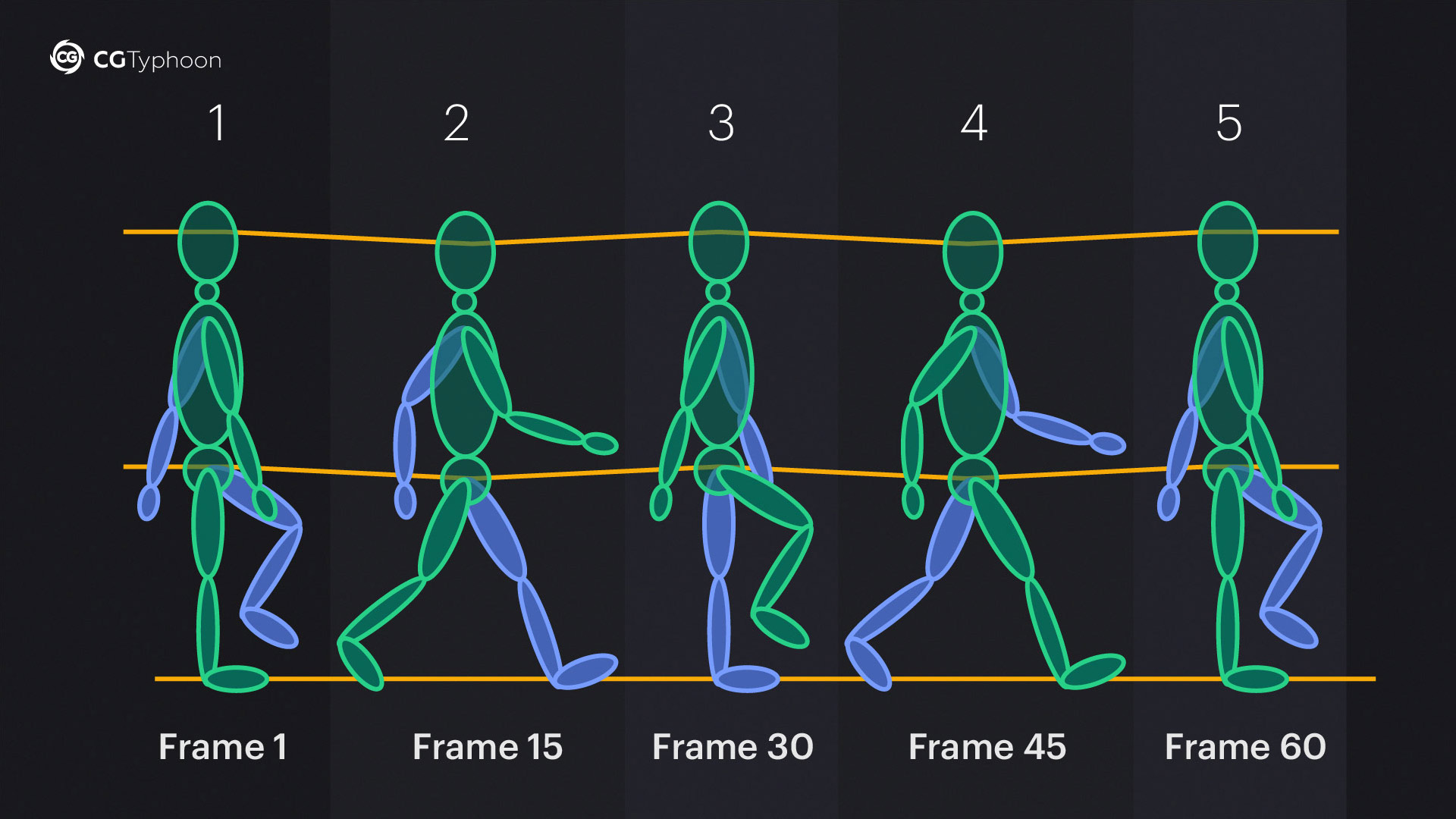
Use a visual walking animation reference when blocking your walk cycle. A good reference image should show the main poses, frame numbers, ground line, direction of movement, and body height changes.
For this article, the main walk cycle reference should include:
- Full human walk cycle from frame 1 to frame 60.
- Contact, down, passing, and up pose labels.
- Frame numbers: 1, 8, 15, 23, 30, 38, 45, 53, 60.
- A clear ground line.
- Left and right steps.
- Arrows showing hip movement.
- Arm and leg direction.
Recommended image alt text:
Human walk cycle animation reference with key poses and frames at 30 fps
Start by blocking the contact, down, passing, and up poses first. Then add in-betweens and adjust the timing. Do not polish details too early. A walk cycle becomes much easier to animate when the main key poses are already clear.
Body Movement in a Human Walk Cycle
The body should not move like a straight line. A natural walk has small vertical and rotational changes.
In a human walk cycle:
- The hips rotate slightly with each step.
- The pelvis shifts with the planted leg.
- The shoulders rotate opposite to the hips.
- The body goes down after contact.
- The body rises before the next contact.
- The head stays fairly stable.
The center of mass should feel balanced over the planted foot during the passing pose. If the body is too far forward, backward, or sideways, the character may look like it is falling.
A common beginner mistake is animating only the legs while the torso stays stiff. This makes the walk look robotic. Even a subtle hip and chest rotation can make the animation feel much more alive.
Arm Swing in Walk Cycle Animation
The arms help balance the body during a walk.
In a natural human walk:
- The left arm moves forward when the right leg moves forward.
- The right arm moves forward when the left leg moves forward.
- Elbows and wrists can slightly lag behind the shoulders.
- The hands should not feel locked or rigid.
- The arm swing should match the character’s mood.
A confident character may have a wider arm swing. A tired character may have loose, delayed arms. A nervous character may keep the arms closer to the body.
Avoid moving the arm and leg on the same side forward together. This often makes the walk feel unnatural and unbalanced.
Foot Contact and Foot Sliding
Foot sliding is one of the most common problems in walk cycle animation. It happens when the planted foot moves while it should be locked on the ground.
A planted foot should stay in place from the moment it contacts the ground until the heel lifts and the foot leaves the surface.
If the foot slides, the character may look weightless or poorly connected to the ground.
To avoid foot sliding:
- In 2D animation, use a clear ground line.
- In 3D animation, use IK controls for the feet.
- Check the Graph Editor for unwanted movement.
- Make sure the planted foot stays locked during contact.
- In game animation, match stride length with movement speed.
For game characters, this is especially important. If the engine moves the character forward faster or slower than the animated stride length, the feet will slide.
How to Make a Seamless Walk Cycle Loop
A seamless walk cycle loop should repeat without a visible pause, jump, or freeze.
Use this checklist:
- First and last pose match.
- No visible freeze at the loop point.
- Feet stay locked on the ground.
- Body height changes smoothly.
- Arms do not pop between frames.
- The cycle works at real speed.
The first and last pose are often identical, but that does not always mean you should export both. If the final frame is a duplicate of the first frame, the animation may pause for one frame when it loops.
For example, if frame 60 is the same as frame 1, you may export frames 1–59 for smoother playback.
Always check the walk cycle at real speed. Some problems are hard to notice frame by frame but become obvious when the animation loops continuously.
Common Walk Cycle Animation Mistakes
| Mistake | Why It Looks Wrong | How to Fix It |
|---|---|---|
| Foot sliding | The foot moves while planted | Lock the foot during contact |
| No down pose | Character feels weightless | Lower the body after contact |
| Stiff torso | Walk looks robotic | Add subtle hip and chest rotation |
| Arms move with same-side legs | Balance feels unnatural | Move arms opposite to legs |
| Too much bounce | Character looks like jumping | Reduce vertical body movement |
| Perfect symmetry | Walk feels mechanical | Add small natural offsets |
| Duplicate final frame pause | Loop freezes for a moment | Remove the repeated last frame |
A clean walk cycle is usually simple, readable, and balanced. Do not add too many details before the main poses work. First fix the contact, down, passing, and up poses. Then polish the hands, head, fingers, clothes, or secondary motion.
2D vs 3D Walk Cycle Animation
The principles of walk cycle animation are the same in 2D and 3D, but the workflow is different.
| Aspect | 2D Walk Cycle | 3D Walk Cycle |
| Main workflow | Draw poses frame by frame | Pose rig controls |
| Foot control | Check spacing manually | Use IK/FK controls |
| Cleanup | Line, volume, and spacing | Curves, tangents, and foot locking |
| Common issue | Inconsistent volumes | Foot sliding or knee popping |
| Best check | Flipbook or playblast | Viewport playback and Graph Editor |
In 2D animation, focus on silhouette, volume consistency, and spacing. In 3D animation, focus on clean curves, foot locking, hip rotation, and avoiding knee popping.
In both cases, the animation should be tested as a loop, not only as separate poses.
Walk Cycle Animation for Games
A walk cycle for games has extra technical requirements because it must work inside an interactive system.
In many games, the walk cycle is animated in place. The character walks like it is on a treadmill, while the game engine moves the character forward.
For game animation:
- The walk cycle must loop cleanly.
- The stride length must match the movement speed.
- The feet should not slide.
- The animation should blend well with idle, run, and turn cycles.
- The timing should feel responsive to player input.
If the character’s in-game speed does not match the animation, the feet may slide. This is why game animators often test the walk cycle inside the engine, not only in animation software.
A good walking loop should also blend smoothly into other animations. The transition from idle to walk, walk to run, and walk to turn should not create sudden pops in the hips, feet, or arms.
Practical Checklist Before Final Render
Before exporting the final human walking animation, check the following:
- Are the contact poses clear?
- Are the walk cycle keyframes readable?
- Does the body go down after each contact?
- Does the passing pose feel balanced?
- Are the arms moving opposite to the legs?
- Are the feet locked when planted?
- Does the animation loop without a pause?
- Does the cycle look good at 30 fps?
- Can the final result work as a walking animation reference?
If the answer is yes, the walk cycle is ready for cleanup, polish, or export.
Frequently Asked Questions (FAQ)
What is a walk cycle?
How many frames are in a walk cycle at 30 fps?
What are the main walk cycle key poses?
What is the difference between 30 fps and 30 frames?
Why does my walk cycle look robotic?
Why are the feet sliding in my walk cycle?
Should the first and last frame be the same?
Conclusion
A good walk cycle animation starts with clear key poses. The contact, down, passing, and up poses create the rhythm, weight, and structure of the movement.
At 30 fps, remember that fps defines playback speed, not the length of the animation. A 30-frame walk cycle lasts 1 second, while a 60-frame walk cycle lasts 2 seconds.
For a natural human walk cycle, pay attention to body movement, arm swing, foot contact, and seamless looping. The final animation should feel balanced, readable, and smooth, without foot sliding or a pause at the loop point.
Once the main walk cycle frames work, you can adjust the timing to create different characters: fast, relaxed, heavy, confident, nervous, cartoonish, or realistic.